
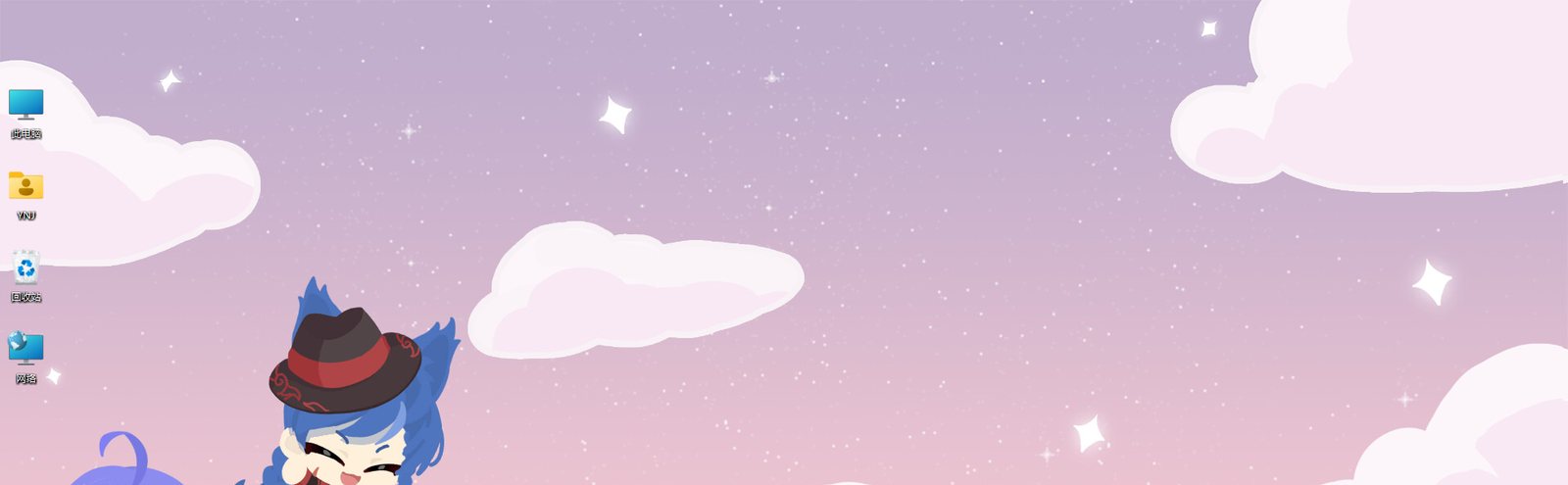
Character House Desktop Modes: Standing, Typing and Corner
The three Character House desktop behaviours compared, plus the right-click settings that stop your character blocking your work.

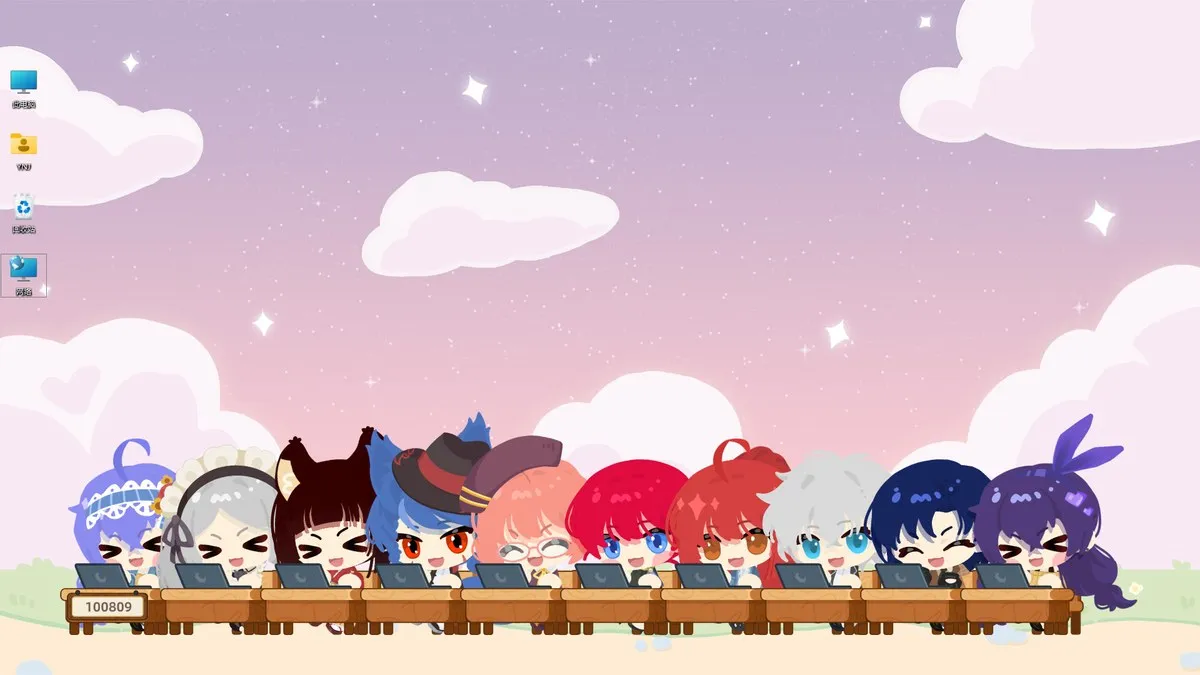
Character House has three on-screen behaviours, and the one you pick changes how much the character interferes with your work. Standing Mode lets it wander. Sit-in-a-Row Mode puts it at a desk where it types along with every key you press. Hiding in the Corner parks it at the screen edge, out of the way. For a work session, the row and the corner are the practical choices.
The three modes, side by side
| Mode | Official description | What it means in practice |
|---|---|---|
| Standing Mode | Stands there, and wanders around from time to time | It moves on its own, so it will cross your windows |
| Sit-in-a-Row Mode | Keeps you company while you work, syncing with every keystroke | It types when you type, and the key counter climbs |
| Hiding in the Corner | Lurks at the edge of the screen, watching quietly without getting in the way | The least intrusive option, best for long sessions |
The store page also mentions richer animations and expressions, so a character in any mode will still react, blink and change pose.
The right-click menu controls
Right-clicking a character opens the controls that decide how it behaves on your desktop:
- Auto walk – on or off. This is the switch that stops a standing character from drifting over your windows.
- Always on top – keeps the character above every other window. Useful for a browser, painful when a full-screen game is running.
- Switch monitor – sends the character to a different display.
- Size – scales the character up or down.
- Setting – the character-level configuration panel.
- Launcher and setup – the app-level launcher and setup entry.
- Craft and Dress up – the collection screens rather than desktop behaviour.
Change Auto walk first. It solves most “my character is in the way” complaints before they start.
The settings that stop the fighting with your work
Two problem areas show up repeatedly in the Steam discussions, and both have a setting aimed at them.
The first is full-screen games. A character that is always on top will sit over your game, so the 21 September 2026 update added a taskbar shortcut for toggling Always on top without opening the settings panel.
The second is performance. The same update added a frame-rate choice of 30, 60 or unlimited, which is the practical way to stop a desktop pet from competing with a game for resources.
One player also reported that pressing a key moves characters between monitors while typing, and asked for a way to disable it. That is a single report, so treat it as something to watch for rather than a rule.
Moving, scaling and lining up several characters
Move a character by dragging it. The developer’s own tip list notes that right-clicking a character and dragging makes it follow the cursor, which is steadier than a plain drag when the character is small.
Scaling is done from the same menu. Players on high-resolution displays usually shrink characters so they sit below the taskbar, and then enlarge them again when they are not working.
If you have several characters and want them lined up, do not drag each one. The developer’s update post points out that the typing mode can move multiple characters at once, so switching into the row mode and then out of it is the fast way to tidy the desktop.
What happens when a character disappears
Characters occasionally end up off-screen. Before the first update there was no way to bring them back, and the developer apologised for it in the announcement. Now you can right-click the character from the taskbar and reset it.
If the character is still missing entirely, that is a different problem. The black background and lost-transparency issue has its own page.
Related reading
- Build the character first: character creation
- What the counter and the gems do: rewards and expressions
- Background is black or the character is invisible: fixes
Related Articles
guide
Character House Beginner Guide: What To Do First
A first-session plan for Character House Desktop Companion: install the free demo, build one character, pick a desktop mode and learn the right-click menu.
guide
Character Creation in Character House: Parts, Colours and Limits
How the Character House character studio works: the part categories, the colour and gradient tools, the ID card, and the limits players keep running into.
guide
Character House Rewards and Expressions: How Progress Works
How the Character House idle loop works: offline rewards, what the gems buy, how levelling grants skill points for expressions, and how two characters interact.